In this post
Microsoft now lets admins write their Conditional Access exclusions once and share them across a group of related rules. The feature, called policy plans, entered public preview in Microsoft Entra (formerly Azure AD) the week of October 26, 2026, and it changes nothing about the policies you already run.
At a glance
| Question | Answer |
|---|---|
| What is it? | A way to group related Conditional Access rules under one set of shared users, apps and exclusions |
| Status | Public preview, announced the week of Oct 26, 2026; no general availability date yet |
| Does it replace my policies? | No. Existing policies keep working unchanged, side by side with plans |
| Who can create one? | Admins with the Conditional Access Administrator role |
| License | The same as Conditional Access itself (Microsoft Entra ID P1 or higher) |
| Where is it? | Entra admin center > Entra ID > Conditional Access > Policy plans (Preview) |
The problem it solves
Most tenants repeat the same emergency-access exclusions in policy after policy, and one missed copy can lock people out. Plans keep that list in one place.
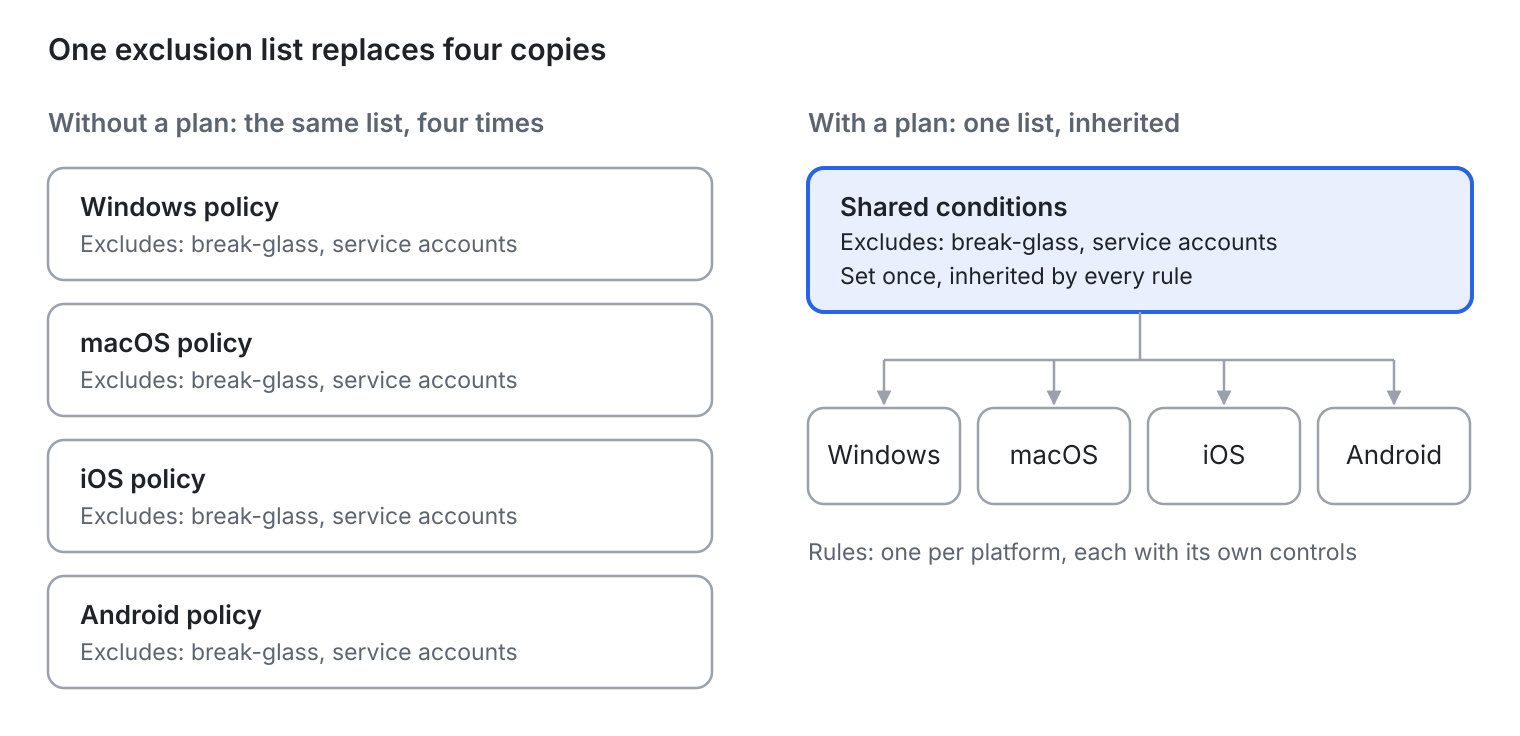
Microsoft’s own example: separate Windows, macOS, iOS and Android policies that each repeat the same targeting. With a plan, a change to the shared list reaches every rule at once.
How a plan works
A plan is a container: shared settings at the top, and one or more rules underneath that do the enforcing.
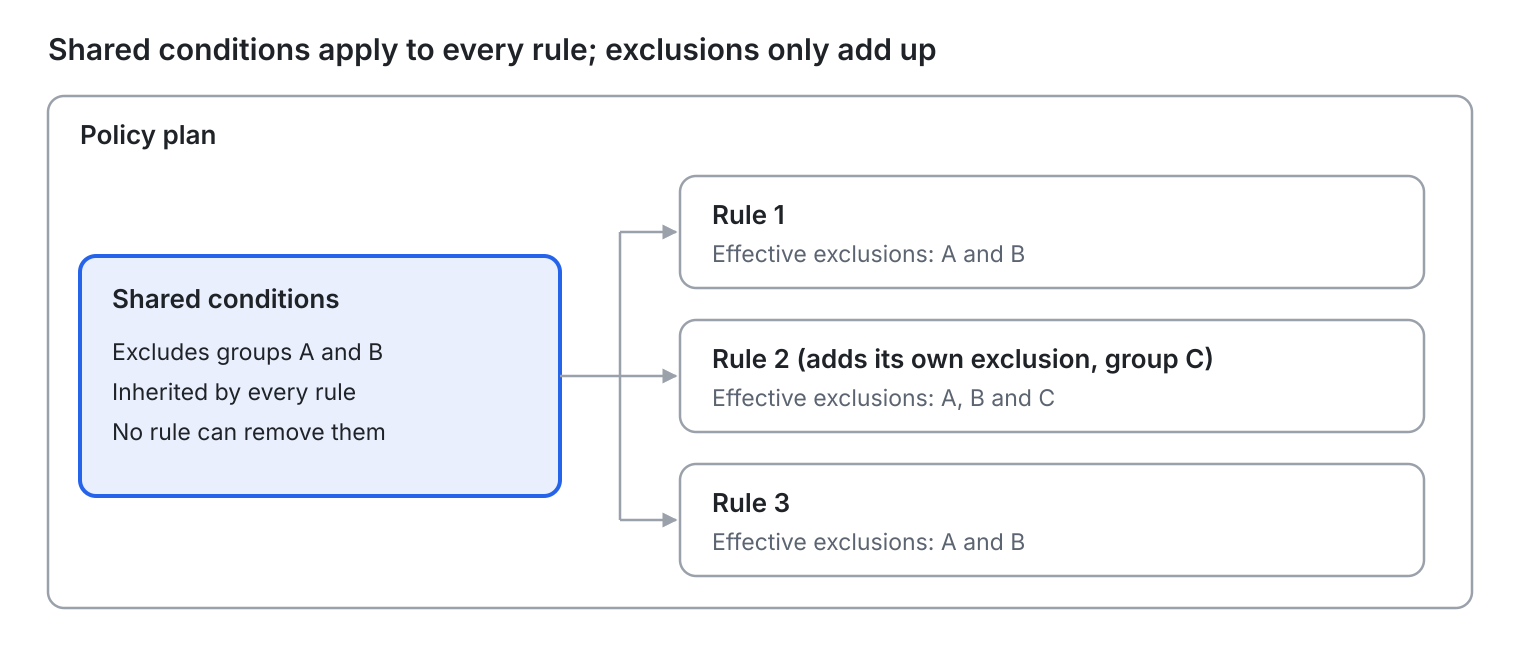
Three rules of thumb cover almost everything:
-
- The plan’s settings flow down. Every rule inherits the plan’s users, apps and conditions, and cannot narrow them.
-
- Exclusions only add up. A rule can add its own exclusions but can never remove one set at plan level.
-
- Each rule stands alone at sign-in. It is checked like a normal policy and appears separately in sign-in logs. Existing policies are checked too, and all that apply must pass.
Two settings, All users and All resources, can only be picked inside a rule, not at plan level.
Where to find it
You can start a plan from a ready-made template or from a blank page. Both begin in the same place.
-
- Sign in to the Microsoft Entra admin center as a Conditional Access Administrator.
-
- Go to Entra ID > Conditional Access > Policy plans (Preview).
-
- Choose Create policy from template or Create policy.
-
- Add your emergency access and service accounts under Shared conditions > Exclude.
-
- Add one or more rules, and leave each in Report-only until you have checked the sign-in logs.
Microsoft’s official walkthroughs are the best way to follow along in the portal, since the preview interface may still change:
-
- Create a Conditional Access policy plan (preview): every click, template and custom
-
- Migrate Conditional Access policies to a policy plan: the merge wizard
-
- What are policy plans?: the concept page
Moving existing policies into a plan
A built-in wizard copies your policies into a plan, but you will usually need to move your emergency exclusions yourself. Your original policies are not touched.
-
- Go to Conditional Access > Policies and select Get started on the “Migrate to Conditional Access Policy plans (Preview)” banner.
-
- Pick the policies that share a goal, then select Merge policies into a plan and give the plan a name.
-
- Open the new plan, select Edit plan, and add your emergency access accounts under shared exclusions.
-
- Set every new rule to Report-only. They start switched Off.
-
- Compare each rule’s result with the original policy in Monitoring & health > Sign-in logs.
-
- Turn the rules On first, then turn the originals Off.
Why step 3 matters: in hands-on testing by Rudy Mens, the wizard only shared users when policies had identical user lists that did not use “All users.” Most baseline policies do target All users, so their exclusions stay inside each rule.
Why step 6 is in that order: turning the rules on first means a control is briefly applied twice, which is harmless. The reverse leaves a gap with nothing enforced.
Watch-outs while it is in preview
Three limits are worth knowing before you use plans in production.
| Watch-out | What it means for you |
|---|---|
| Location rules are checked less often | Plans that target users by location get one-hour access tokens without the instant IP check. Someone who leaves an allowed location may keep access for up to an hour. |
| Backups may miss plans | In LazyAdmin’s testing, plans did not appear in standard policy exports; they sit behind an undocumented beta Graph endpoint. Back up plans and their rules together. |
| Preview terms apply | Features may change or lack capabilities before general availability. |
Other Conditional Access changes on the calendar
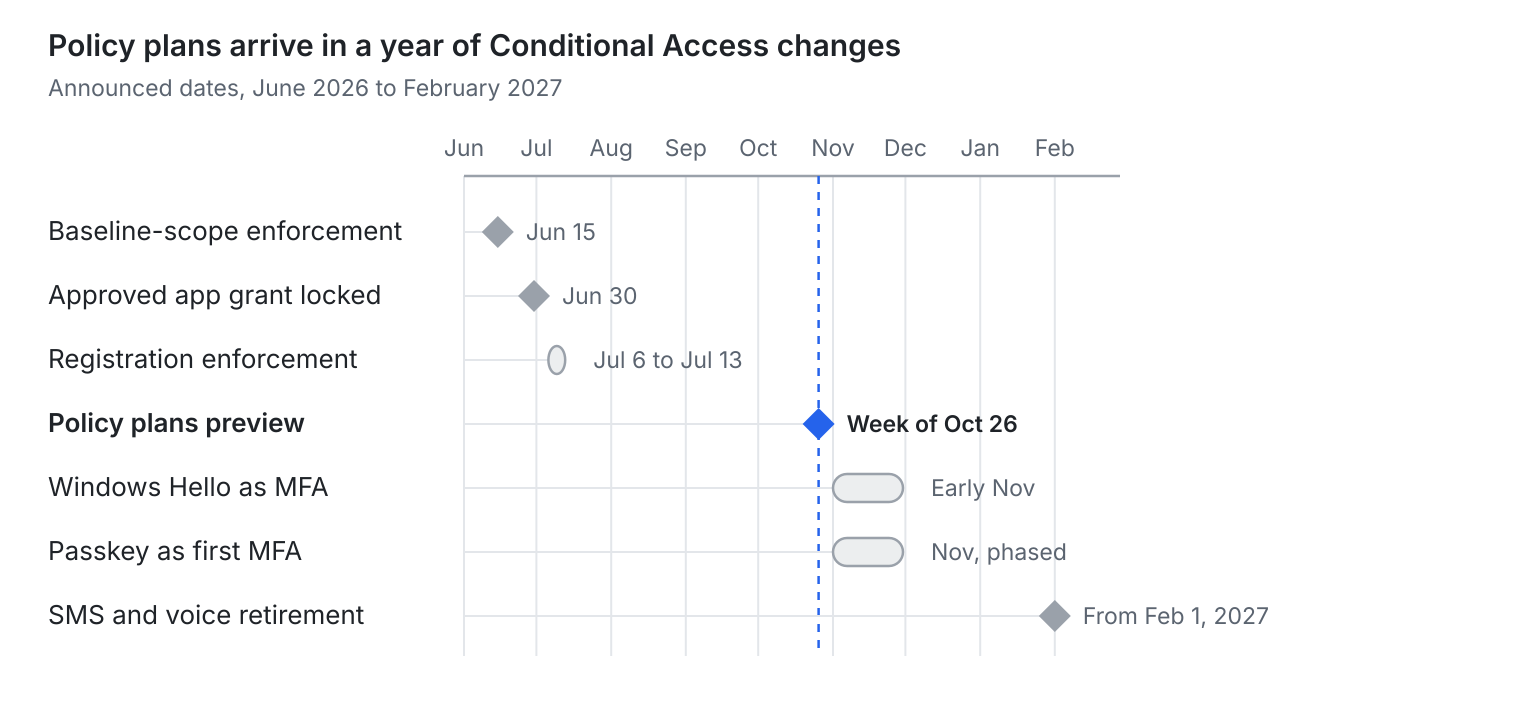
Plans are one of several changes this year, and the next two land in November.
-
- Baseline-scope enforcement (Jun 15): apps that ask only for basic sign-in details can now trigger MFA or device checks under “All resources” policies with exclusions. Details
-
- Approved client app grant (Jun 30): policies using it became read-only; use “Require app protection policy” instead. Details
-
- Registration enforcement (Jul 6 to 13): policies on “Register security information” now also apply when setting up Windows Hello and macOS Platform SSO.
-
- Windows Hello and macOS Platform SSO as MFA (early Nov): they will count as MFA on their own, with no setup needed. Details
-
- Passkey as a first MFA method (Nov, phased): users can skip registering a weaker method first. Details
-
- SMS and voice (from Feb 1, 2027): Microsoft-provided text and phone-call codes start retiring; move users to passkeys or another method.