In this post
If anyone in your organization still signs in to Microsoft 365 or Azure with a texted code or a phone call, a deadline is coming. Microsoft has made passkeys the default sign-in experience in Microsoft Entra ID, and it is shutting down its own SMS and voice delivery for multifactor authentication (MFA).
This post covers what is changing, the dates that matter, and what to do about it.
What Microsoft is changing
There are two connected moves:
- Passkeys become the default. Starting September 1, 2026, users who are enabled for SMS or voice are automatically enabled for passkeys. The next time they complete an MFA challenge, they are prompted to register one. Until the retirement date, users can skip the prompt.
- Microsoft stops providing SMS and voice. Microsoft-provided telecom delivery for SMS and voice authentication ends, and it will no longer be a native Entra capability.
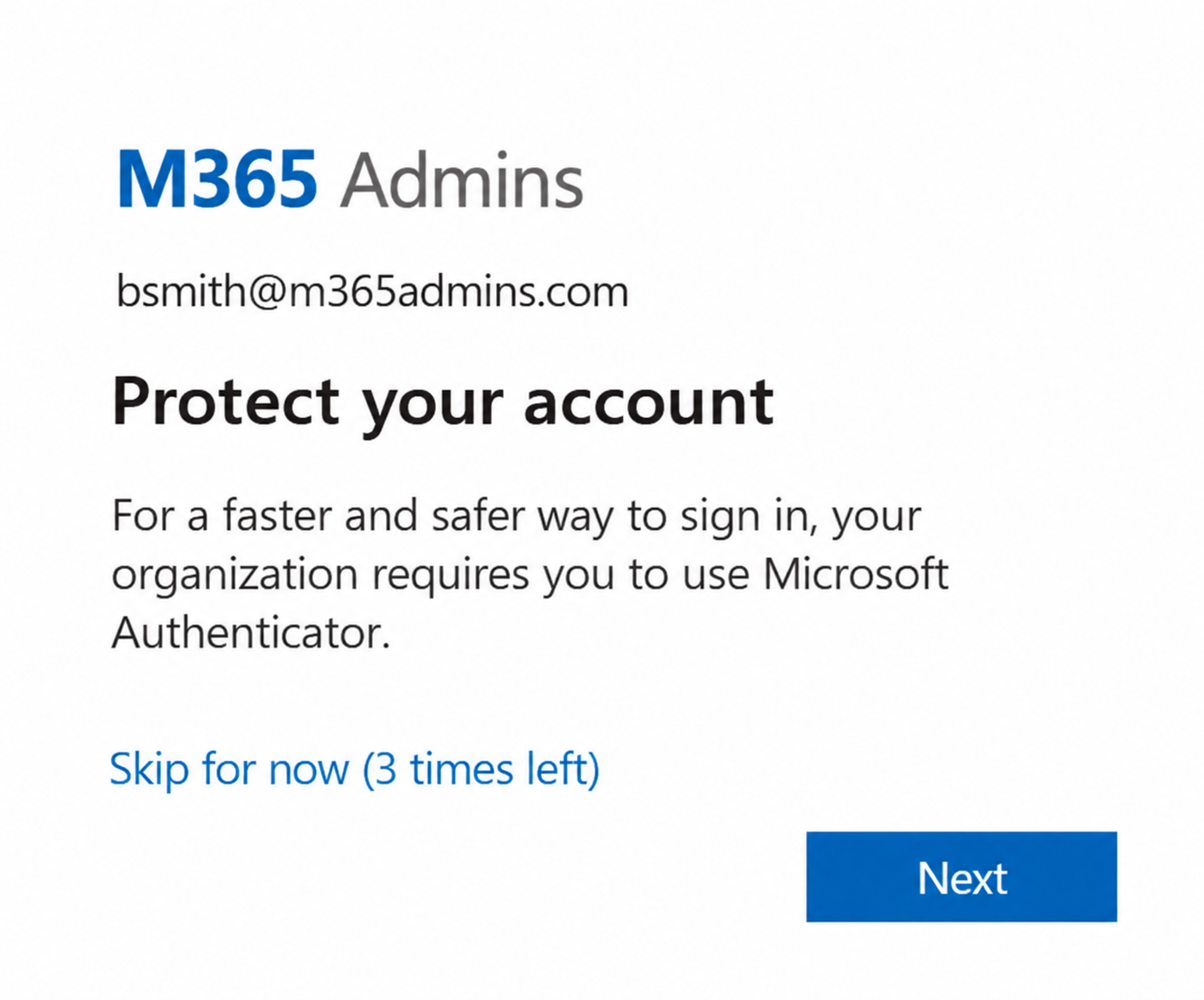
Microsoft’s reasoning is that SMS one-time codes and voice calls remain open to phishing, interception and social engineering, and that AI-powered attacks make those weaknesses worse. Passkeys avoid the problem because there is no code to steal or relay: the credential is tied to the user’s device and the legitimate site.
Key dates
| Date | What happens |
|---|---|
| September 1, 2026 | Passkeys become the default. Users enabled for SMS or voice are auto-enabled for passkeys and nudged to register at their next MFA sign-in. |
| February 1, 2027 | Microsoft-provided SMS and voice authentication is retired for most users. Anyone whose only MFA method is SMS or voice must register a passkey to keep signing in. |
| July 1, 2027 | The same retirement applies to Global Administrators and external users, who get a later date. |
Microsoft says these dates apply to Entra ID in the public cloud. It also offers a temporary opt-out from the automatic passkey enablement, but that does not move the retirement date. Self-service password reset is affected too, so anywhere SMS is used for SSPR needs the same attention.
Can you keep SMS or voice?
Yes, but not from Microsoft. Organizations with a documented regulatory or operational need can choose a telecom provider through the Microsoft Security Store and configure it themselves. That makes you responsible for the telecom relationship and its costs. According to Microsoft Learn, customers can select and configure a provider starting October 30, 2026. Soprano and Telesign are the initial providers during the private preview, with more expected by general availability. For everyone else, passkeys are the recommended path, and they carry no extra cost.
Who is actually affected
You are in scope if any user is enabled for SMS or voice, whether that setting lives in the Authentication Methods Policy or in the older per-user MFA settings that many tenants still have switched on. This catches people off guard: a user who signs in with Microsoft Authenticator every day is still in scope if SMS remains enabled for them. Users on external MFA providers are not in scope unless they are also enabled for SMS or voice.
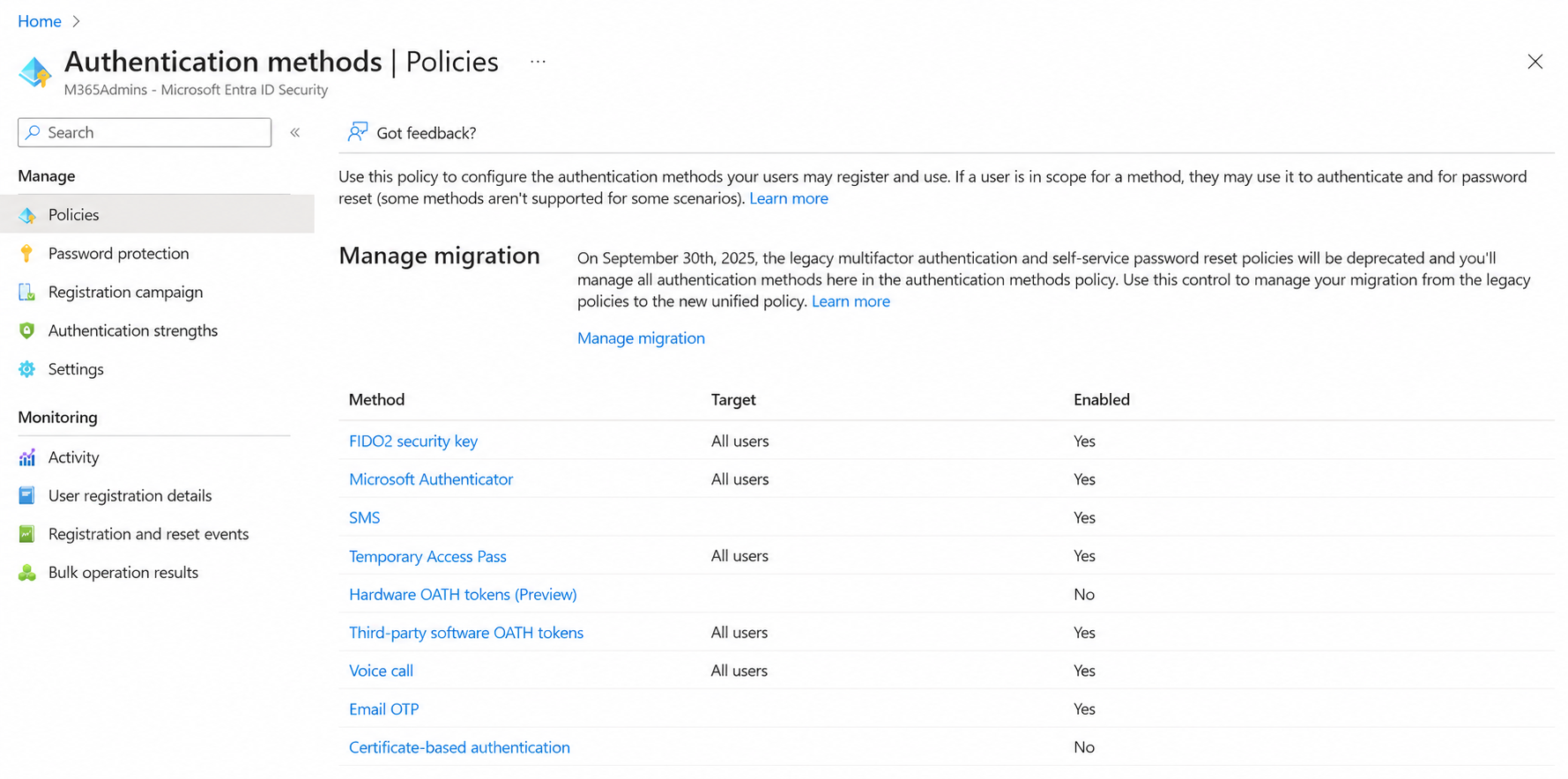
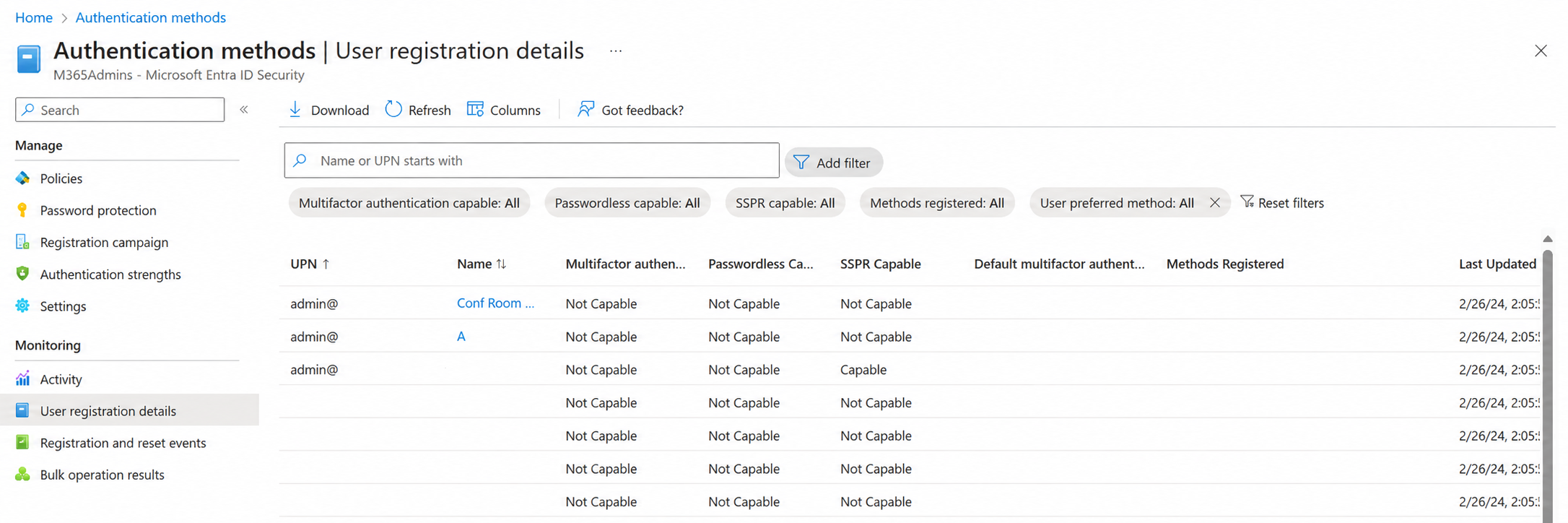
The scale of the change is large. Microsoft has previously said SMS and voice accounted for 44% of all MFA responses, so plenty of organizations will find users they did not know were relying on them.
A practical checklist
- Find out who uses SMS or voice. Microsoft publishes a read-only PowerShell script that lists users enabled for these methods. Check legacy per-user MFA settings separately.
- Pick your passkey types deliberately. Entra supports device-bound passkeys (Microsoft Authenticator passkeys, Entra passkeys on Windows, FIDO2 security keys) and synced passkeys stored in platform credential managers. Auto-enablement places users in a profile that allows all passkey types, so review your Authentication Methods Policy and decide what you want to permit.
- Run a registration campaign. You can prompt users to register passkeys before Microsoft’s automatic enablement reaches your tenant. Pilot with a small group first.
- Cover edge cases. Shared devices, frontline workers, contractors and external users often have no good passkey option yet. Plan for security keys or Windows Hello for Business where needed.
- Verify sign-in and recovery without SMS. Confirm that both authentication and account recovery work before you remove SMS or voice for anyone.
- Decide whether you need a telecom provider. Only choose one if you have a real regulatory or operational reason.
- Tell your users. Explain what the prompt is, why it appears, and how to register. Microsoft provides end-user notification templates.
Opting out of Microsoft’s passkey campaign and running your own
If you would rather control the timing, wording and targeting of the passkey rollout, Microsoft offers a temporary opt-out. Here is what it does, what it does not do, and how to run your own campaign instead.
What Microsoft does by default
When the rollout reaches a tenant, users enabled for SMS or voice (in the Authentication Methods Policy or the legacy MFA settings) are automatically enabled for passkeys. Microsoft places them in a passkey profile that allows all passkey types. It also switches your registration campaign to the Microsoft Managed state, targeting passkeys, so those users are nudged after their next MFA sign-in. By default the nudge can be snoozed without limit.
What the opt-out does
Setting the opt-out excludes your tenant from Microsoft’s automatic passkey enablement and the Microsoft-managed registration campaign. Because the all-types passkey profile is applied as part of that automatic enablement, opting out also means Microsoft does not apply it to your SMS and voice users. Microsoft’s documentation describes the opt-out as excluding the tenant from the automatic enablement rather than naming the profile specifically, so check the result in your own tenant rather than assuming.
Three limits matter:
- It is temporary. It covers the September 1, 2026 to February 1, 2027 changes only.
- It does not move the retirement date. From February 1, 2027 (July 1, 2027 for Global Administrators and external users), anyone whose only method is SMS or voice gets a blocking passkey registration prompt, with no opt-out.
- It does not remove passkeys from Entra. You can still configure and use them. You just do it on your own terms.
Timing matters too. Microsoft’s rollout is gradual, and the opt-out is meant to be set before it reaches your tenant. If it already has, check your registration campaign and passkey settings and correct them manually. Microsoft’s documentation does not say that setting the opt-out afterwards reverses changes already applied.
How to opt out
There is no portal toggle. You set it through Microsoft Graph, and it needs the Policy.ReadWrite.AuthenticationMethod permission. This uses the beta endpoint, so confirm the current syntax on Microsoft Learn before running it.
PATCH https://graph.microsoft.com/beta/policies/authenticationmethodspolicy
Content-Type: application/json

{
  "optOutSettings": {
    "passkeyDynamicMigration": true
  }
}
The same call in PowerShell with the Microsoft Graph module:
Connect-MgGraph -Scopes "Policy.ReadWrite.AuthenticationMethod"

Invoke-MgGraphRequest -Method PATCH `
  -Uri "https://graph.microsoft.com/beta/policies/authenticationMethodsPolicy" `
  -ContentType "application/json" `
  -Body @{ optOutSettings = @{ passkeyDynamicMigration = $true } }
Afterwards, read the policy back with a GET request and confirm the setting is true. Then check Entra ID > Authentication methods > Registration campaign to see that the state is what you expect.
Running your own campaign
With the opt-out in place, nothing is configured for you, so set up the pieces yourself. You can also do this without opting out, ahead of Microsoft’s automatic enablement.
- Build your target group. Use Microsoft’s SMS and voice usage analyzer script to list users enabled for these methods, then put them in a security group. Start with a small pilot group.
- Enable Passkey (FIDO2) and set your own profile. Go to Entra ID > Authentication methods > Policies > Passkey (FIDO2). Make sure your target group is included, then choose which passkey types to allow (device-bound, synced, or both). Attestation settings influence whether synced passkeys are accepted, so decide this on purpose instead of inheriting an all-types default.
- Configure the registration campaign. Go to Entra ID > Authentication methods > Registration campaign, sign in as an Authentication Policy Administrator, and target your group with passkeys as the method. Microsoft’s own steps use the Microsoft Managed state. If you want to be sure Microsoft’s later changes do not override your settings, choose Enabled instead.
- Decide how patient to be. The Microsoft default allows unlimited snoozes. A campaign you run yourself can limit them, so users cannot postpone indefinitely.
- Tell users first. Send an awareness message, then step-by-step instructions for their device type, then a reminder. Microsoft provides email, Teams and intranet templates at aka.ms/mfatemplates.
- Widen in waves. Watch the registration reports and help desk tickets, then add the next group.
- Remove SMS and voice last. Once a user has a working passkey and recovery is tested, take SMS and voice off their account. Do not do it earlier.
A note on timing: if you opt out, plan to finish your own campaign well before February 1, 2027. After that date the opt-out no longer protects users whose only method is SMS or voice, and they will hit the blocking prompt regardless.
One open question
Passkey registration currently requires a prior MFA step, so onboarding brand-new users who have no existing method can be awkward. Administrators should plan how new hires and recovered accounts will register their first passkey, for example with a Temporary Access Pass.
The bottom line
Microsoft is not removing MFA. It is removing the weakest options from the menu and making a phishing-resistant one the default. Passkey nudges are already reaching tenants, and the February 1, 2027 cutoff has no opt-out. Organizations that move users now, on their own schedule, will avoid a wave of blocked sign-ins and help desk tickets later.
Sources
- Passkeys by default and retirement of Microsoft-provided SMS and voice authentication (Microsoft Learn)
- Microsoft Entra ID security updates: Passkeys are the default authentication method (Microsoft Security Blog)
- Microsoft Entra ID gets passkeys default authentication starting September (BleepingComputer)
- Microsoft is forcing an enterprise transition to passkeys (Computerworld)
- Organizations Still Relying on SMS MFA Face a Forced Move to Passkeys (Petri)
- Microsoft to Stop Providing Telephony-Based Authentication Methods for MFA in February 2027 (Office 365 for IT Pros)
- Microsoft Is Retiring SMS and Voice MFA in Entra ID (LoginTC)